Additional Settings
One Button Level Generation Settings
New in 2.0.0. In OCG 1.x these values were compiled into the plugin and could not be changed.
The plugin’s own defaults live in the editor under Edit → Project Settings → Plugins → One Button Level Generation Settings.
The first two are seeds: they are copied into each newly created MapPreset, which then owns its own value, so changing them later does not affect presets that already exist. The rest are project-wide — a MapPreset cannot override them.
The three Runtime Virtual Textures are resolved once, when the editor starts. Restart the editor after changing one, otherwise the previously loaded texture stays in use for the rest of the session. Layer Info Save Path is read at generation time and takes effect immediately.
| Property Name | Description |
|---|---|
| Default Landscape Material Path | The landscape material assigned to newly created MapPreset assets. |
| Default PCGGraph Path | The PCG graph assigned to newly created MapPreset assets. |
| Default Color RVT | The Runtime Virtual Texture used for the landscape’s base colour. |
| Default Height RVT | The Runtime Virtual Texture used for the landscape’s height. |
| Default Displacement RVT | The Runtime Virtual Texture used for the landscape’s displacement. |
| Layer Info Save Path | The content folder that generated LandscapeLayerInfo assets are written to. Defaults to /Game/Landscape/LayerInfos. |
These settings are stored in Config/DefaultOneButtonLevelGeneration.ini in your project, so they can be committed to source control and shared across a team.
If you move or rename one of the configured assets, the stored path is not updated by Fix Up Redirectors. OCG checks every configured path when the editor starts and writes an error to the Output Log naming any that no longer resolve — search the log for
LogOCGModuleif generation stops behaving as expected.
Water materials are not configured here. Leave a water material empty on a MapPreset and OCG falls back to the Water plugin’s defaults under Project Settings → Plugins → Water Editor.
The same settings page also has a Generation Strategies section, which lets a C++ project replace individual stages of terrain generation. See Custom Generation Strategies.
Nanite Setting
- To enable Nanite tessellation, add the following to your project’s Config/DefaultEngine.ini:
[/Script/Engine.RendererSettings]
r.Nanite.AllowTessellation=1
r.Nanite.Tessellation=1
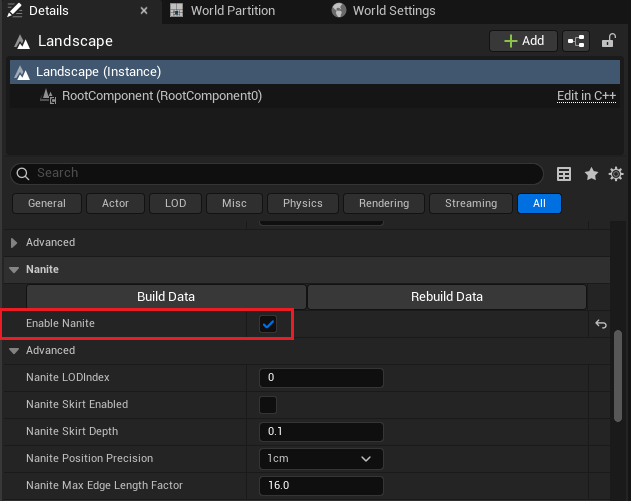
- If you want to apply Nanite Tesselation to Landscape, check Landscape Enable Nanite and build Data.
Runtime Virtual Texture Setting
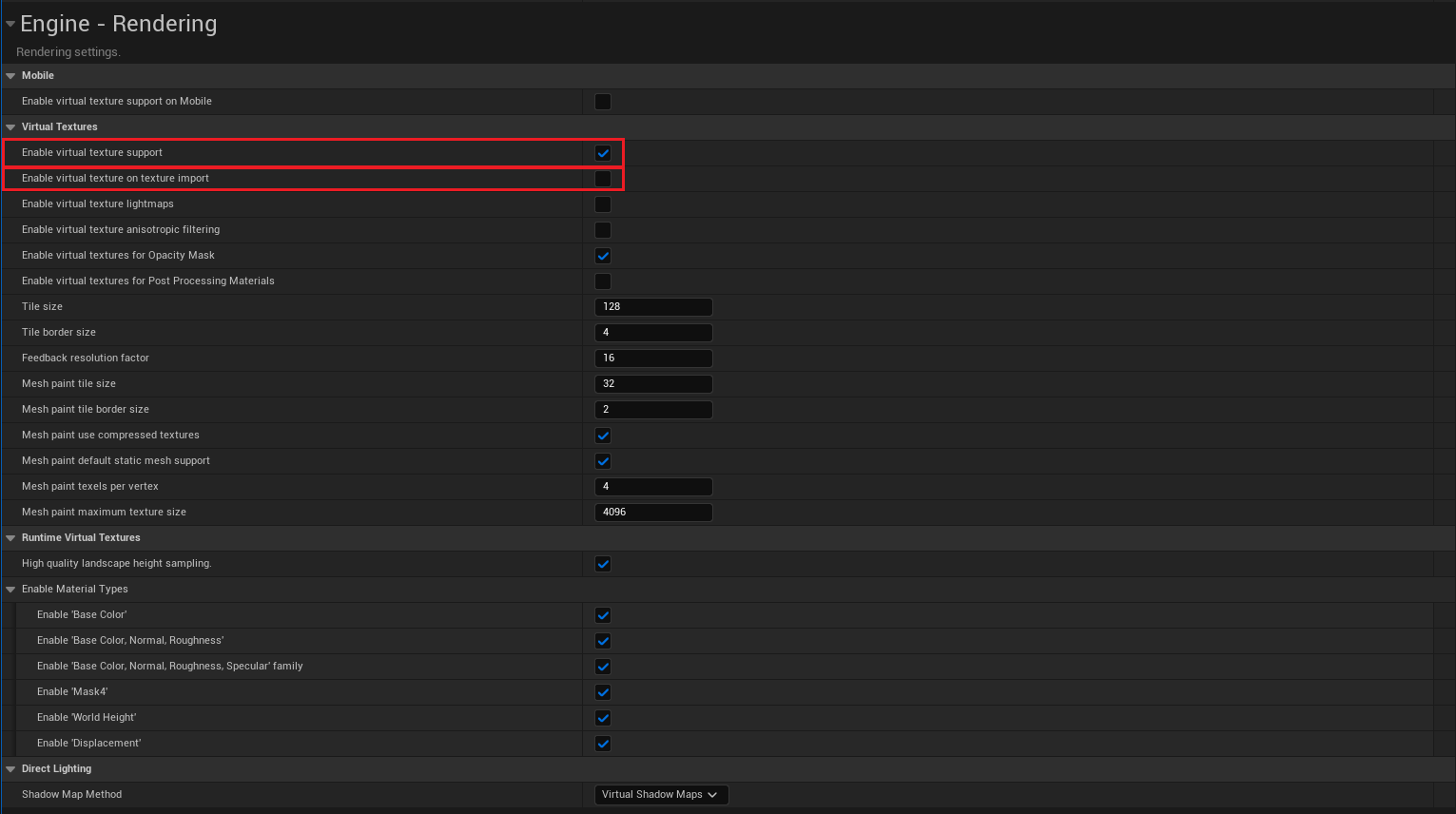
- In Editor, Edit -> Project Settings -> Engine - Rendering -> Virtual Textures
- Check Enable virtual support and UnCheck Enable virtual texture on texture import
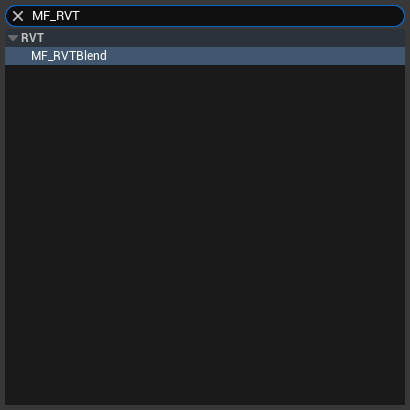
- In Material Editor where you want to apply the Color/Normal Blend using RVT (etc. PCG Mesh’s Material)-> Right-Click -> Search MF_RVTBlend
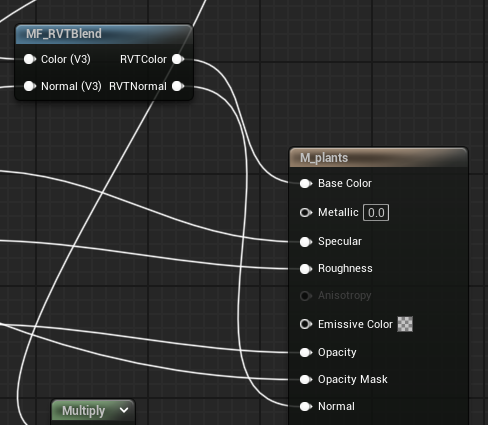
- Connect the final Base Color and Normal as inputs to RVT_Blend, and link the output to the Result Node.