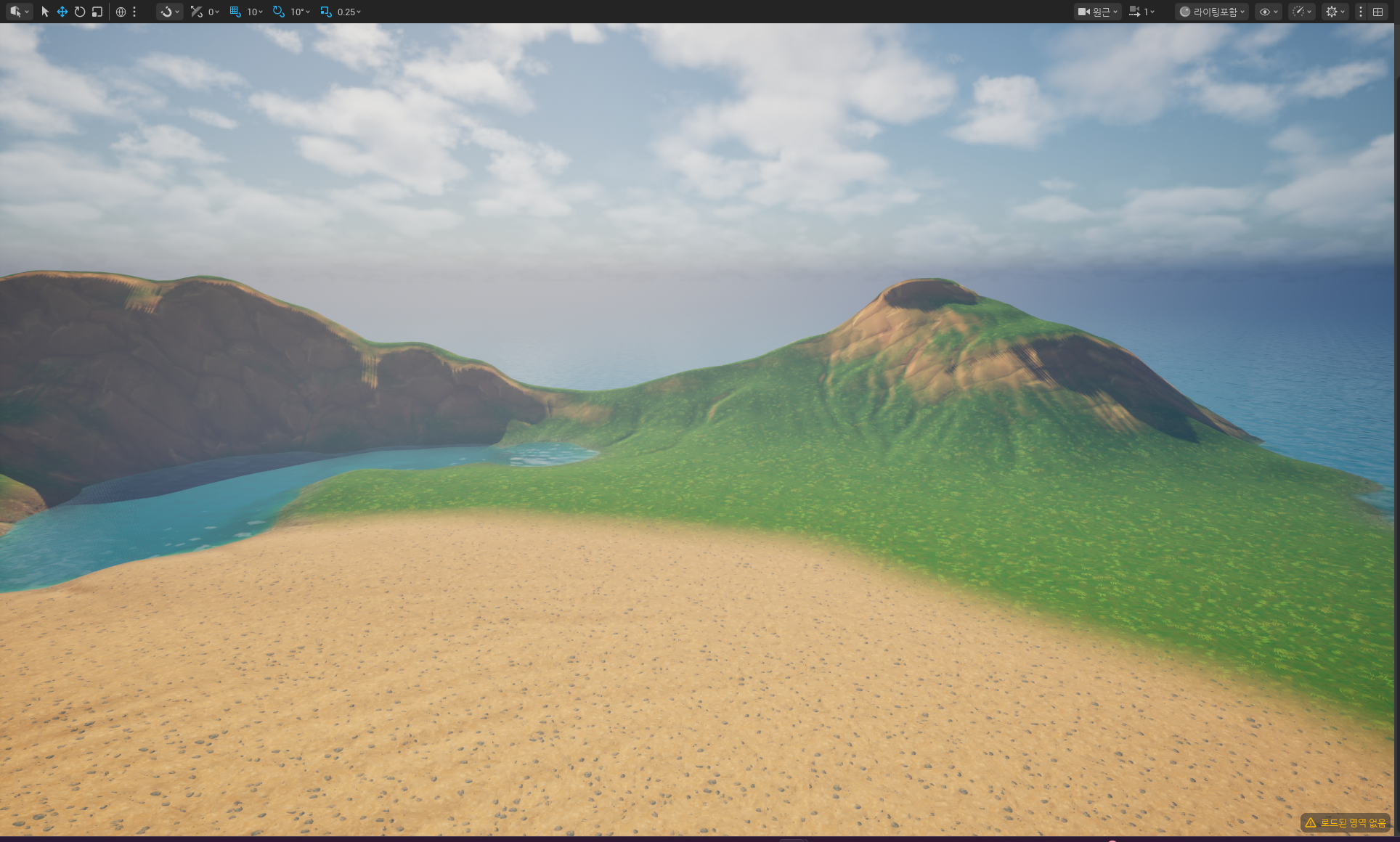
One-Click Level Generator Quick Start
This section explains how to quickly create a level using the plugin’s sample map preset asset and landscape material.
Basic Usage
1. Create a New Level
Select File > New Level (Ctrl+N) to create a new empty level. OCG also supports open worlds.
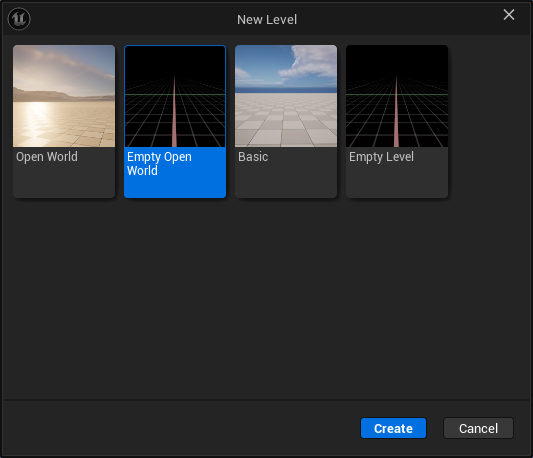
2. Open the One-Click Level Generator
Click the OCG button on the level editor toolbar, or select Window > OCG Tools > OCG.
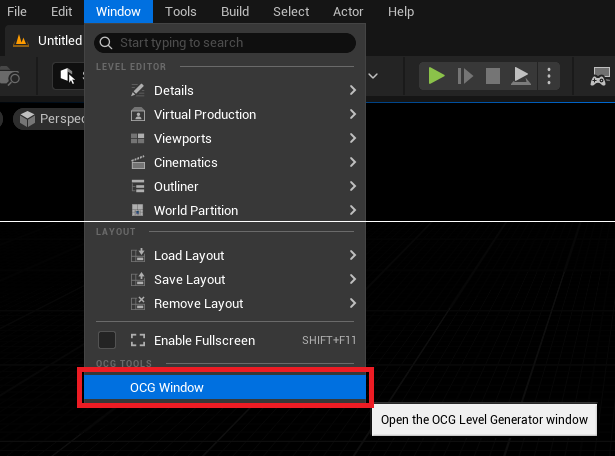
Changed in 2.0.0. There is no longer a
LevelGeneratoractor to place in the level — pick a preset in the window and generate.
In the Preset field at the top of the window, assign the MP_StylizedLandscape map preset located under Plugins/One-Click Level Generation/Samples.
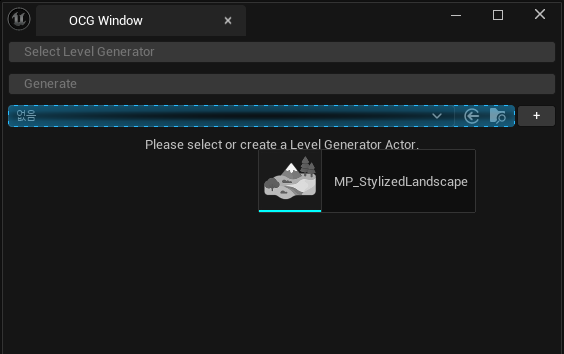
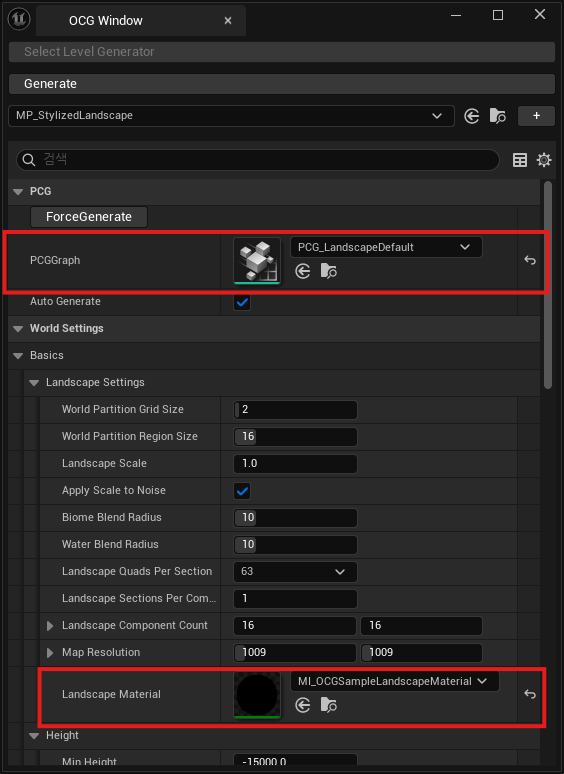
Check if the PCG graph and landscape material are properly assigned. If not, assign them as shown in the image below.
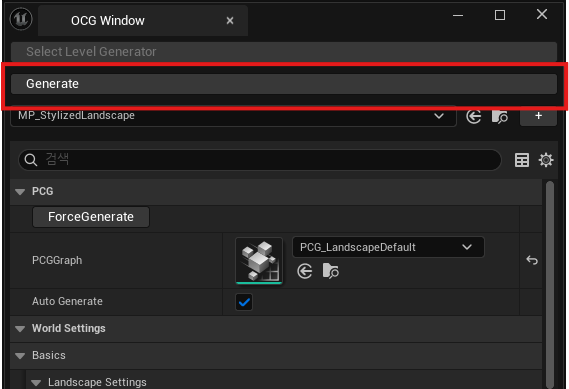
Click Generate All to start generating the level.
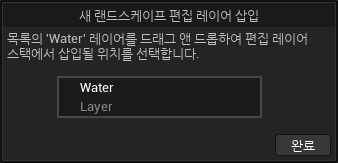
For UE 5.6 or later versions, a Layer Settings window may pop up. Ensure the Water layer is above the Layer layer, then click the Done button.
Select Window > Environment Light Mixer from the top menu to add environment lighting-related actors to the level.

Your sample level is now generated! Refer to the MapPreset documentation to create your own custom levels.